DISCLAIMER: Bosch Security and Jim’s Security recommend that users experiencing persistent hardware issues with their IP module contact an experienced and trusted technician. Please note that opening the main panel can trigger tamper alarms, and any accidental damage caused during non-professional handling will void your product warranty.
If your Bosch mobile RSC+ application consistently displays a “Connection Error”, your system has likely lost its handshake with the cloud. This frequently happens after a home internet modem restarts, changes its IP address, or toggles to a backup mobile SIM status (a known quirk with Telstra Smart Modems). When this happens, the alarm module often fails to automatically reconnect.
Thanks to recent Bosch firmware updates, you no longer necessarily need to break out tools to resolve this. Below are the two ways to restart your module, starting with the easiest, safest method.
Method 1: The Modern Keypad Reset (For Current Firmware)
If your Bosch Solution 2000 or 3000 panel is running recent firmware (v2.1.3 or higher), you can trigger a full cloud module restart directly from your codepad without ever opening the box or setting off a tamper alarm.
-
Go to your security system keypad.
-
Follow the sequence below depending on your keypad type:
-
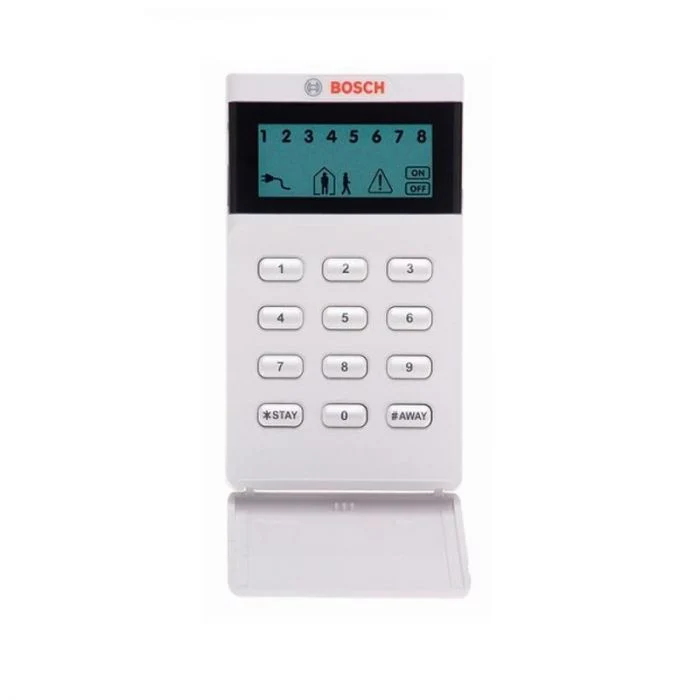
ICON Codepad: Enter your [Master Code] -> [9] [4] [1] -> [#] (or [AWAY]).
-
TEXT Codepad: Enter your [Master Code] -> [-] -> [9] [4] [1].
-
-
What to look for: If you are near the module, you will notice the Orange LINK and Green 100Mb lights cycle completely off.
-
Wait roughly 30 to 60 seconds. The lights will cycle back on and establish a fresh connection to the Bosch cloud. Restart your RSC+ mobile app to verify access.
Method 2: The Manual Hard Reset (For Older Firmware Systems)
If your system is on older firmware and the keypad shortcut does not trigger a reset, you will need to power-cycle the module manually inside the box.
Open the Panel Box: Use a Philips head screwdriver or driver drill to remove the cover screws.
Note: The internal panel tamper switch will instantly trigger. Don’t panic. Just enter your pin code or use your key fob at the keypad to clear/silence the alarm.
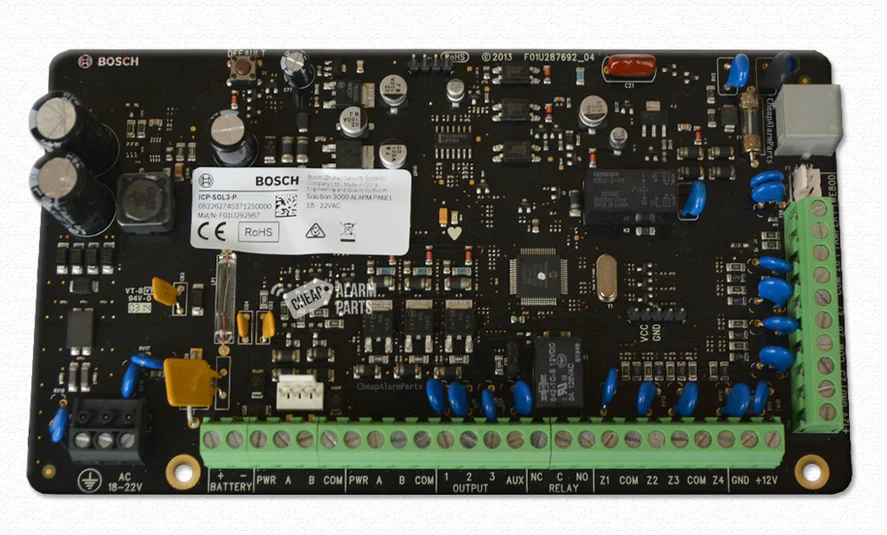
Locate the IP Module: Look for the smaller accessory board adjacent to the main panel. It features a plugged-in Ethernet/internet cable and a flat 4-wire power loom (consisting of red, yellow, green, and black wires) attached via a white BUS connector.
Cycle the Power: Carefully unplug the white 4-pin BUS connector from either the IP module side or the main board. Leave it unplugged for 10 seconds, then securely plug it back into the exact same orientation.
LED Verification: Upon reboot, the module will briefly flash a blue light, followed by a solid orange link light and a green network status light.
Close up: Re-attach the metal housing cover securely. Open your RSC+ app to confirm that the connection error has cleared.
Still Having Trouble? Let Us Fix It For You Remotely!
If your app is still throwing errors or you are uncomfortable handling internal wiring, the issue may stem from an outdated module configuration, an IP conflict, or firmware that requires a professional laptop update (via A-Link Plus).
Don’t risk voiding your warranty. If your IP module requires a firmware flash or re-programming, a Jim’s Security expert can often diagnose, update, and fix these communication faults without even visiting your home.